Webflow

A/B testing built for the way Webflow works

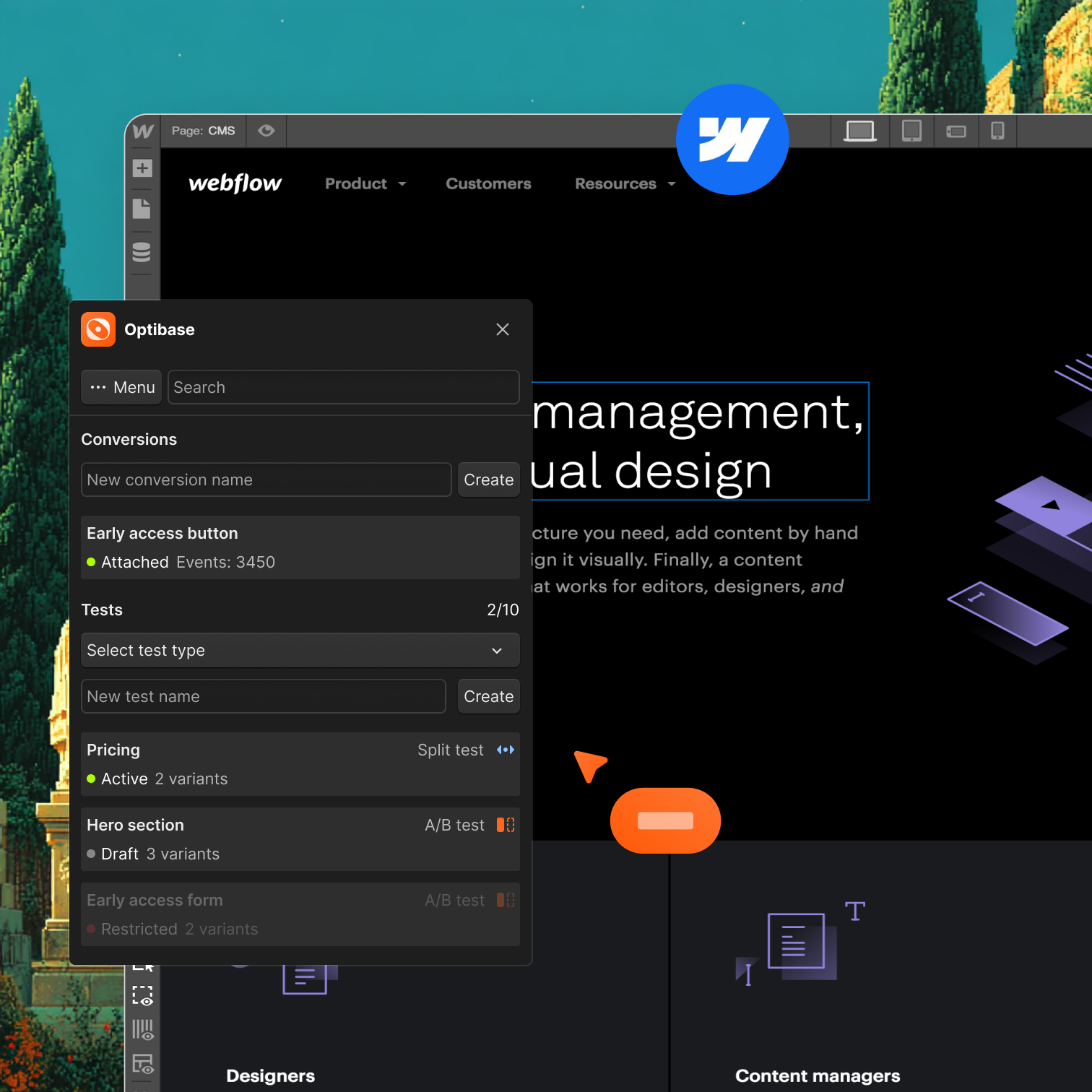
Optibase is the only A/B testing tool that lives inside Webflow. Install it from the App Marketplace, build variants in the Designer, and get data that tells you exactly what converts.
One-click install: Connect your site from the Webflow App Marketplace. No script to touch.
Designer-native: Create and manage tests without leaving Webflow.
No Flickering: Visitors see the right variant on the first load, every time.
Header image
Join 3000+ companies already testing with Optibase
Webflow App Marketplace

Install once. Test anything you can design.

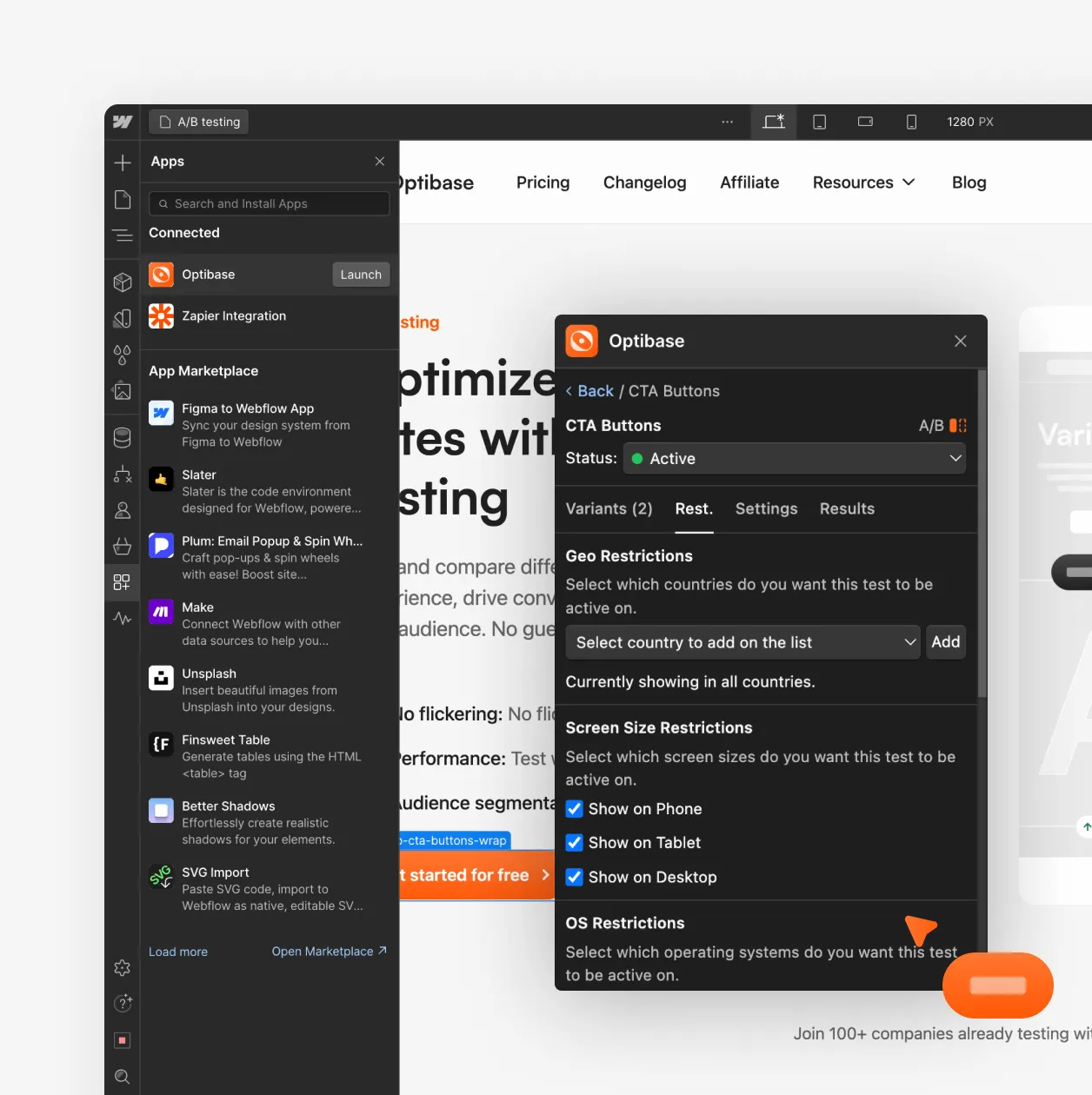
Optibase is available directly in the Webflow App Marketplace. Click install, and the script is added to your site automatically. No project settings, no code, no developer. Build your variant in the Webflow Designer as you normally would, publish it, and connect it in Optibase. You test the real page — not a copy, not a simulation.

App Marketplace install

Find Optibase in the Webflow App Marketplace and click install. Your site connects and tracking starts immediately. No manual setup.

Create variants in the Designer

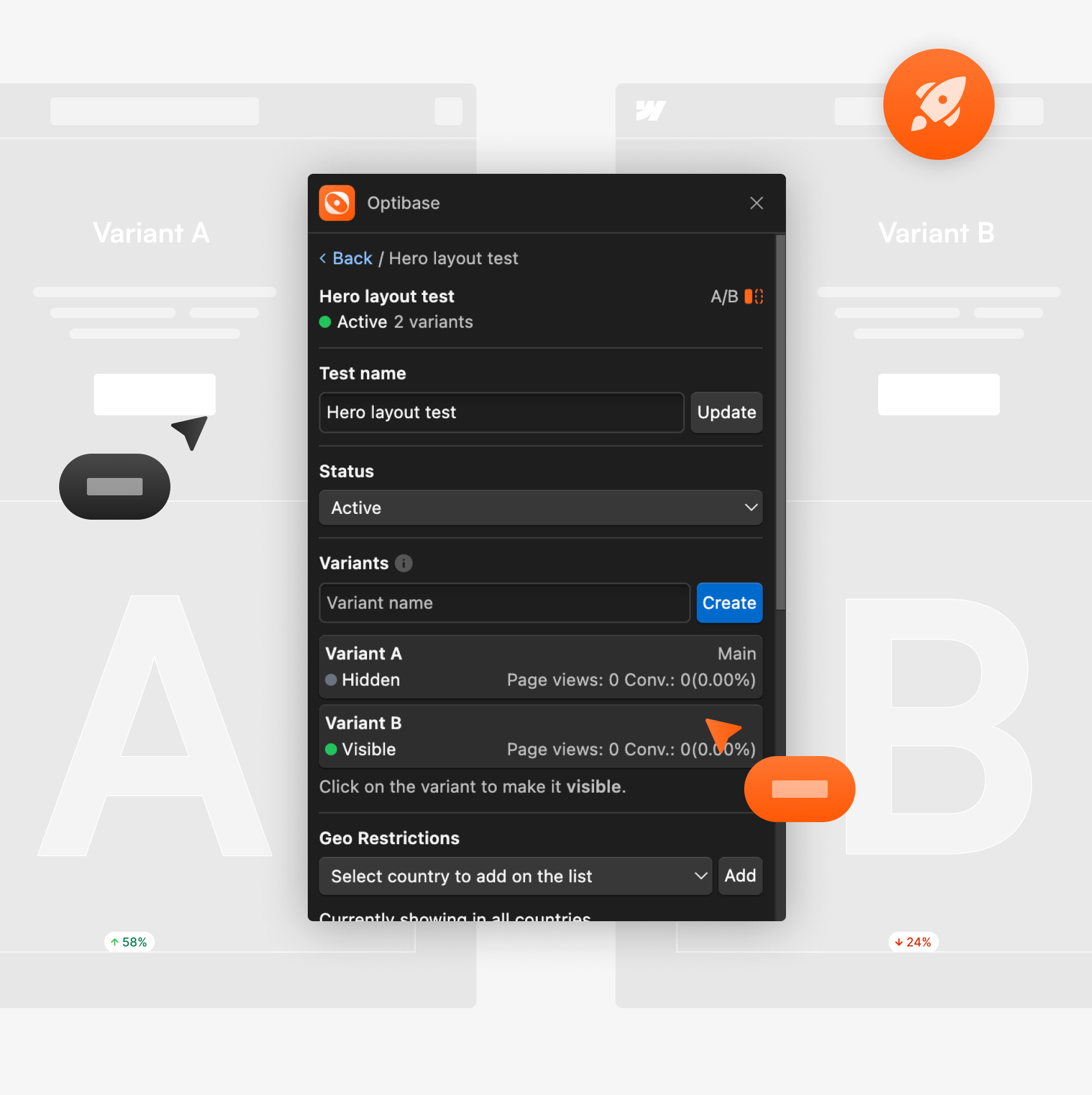
Design your test variant directly in Webflow. Change a headline, button, section, or full layout. If you can build it in Webflow, you can test it.

Works with CMS and dynamic pages

Run tests on CMS templates, landing pages, pricing pages, and collection pages. Optibase handles dynamic Webflow content without issues.
Performance

Fast pages. Clean tests. Safe SEO.

Most A/B testing tools flash the original content before switching to the right variant. Your visitors notice. Optibase eliminates that. Variants load on the first render, your pages stay fast, and Google sees a single, stable page throughout every test you run.

Zero flicker

Visitors see their assigned variant immediately. No flash, no jump, no disrupted first impression.

Lightweight script

Optibase adds one small, optimised script to your site. Core Web Vitals stay clean. Pages stay fast.

SEO safe by design

No redirects, no hidden content, no cloaking techniques. Your Webflow site's search rankings are not at risk while you test.
How it works

From install to live
test in under 10 minutes

Go to the Webflow App Marketplace and install Optibase. Your site connects automatically and the script is added for you. Nothing else to configure.

Install from the Webflow App Marketplace

Go to the Webflow App Marketplace and install Optibase. Your site connects automatically and the script is added for you. Nothing else to configure.

Create your variant in the Designer

Make the changes you want to test in the Webflow Designer. A different headline, button, layout — anything. Publish when you're ready.

Connect elements and set a conversion goal

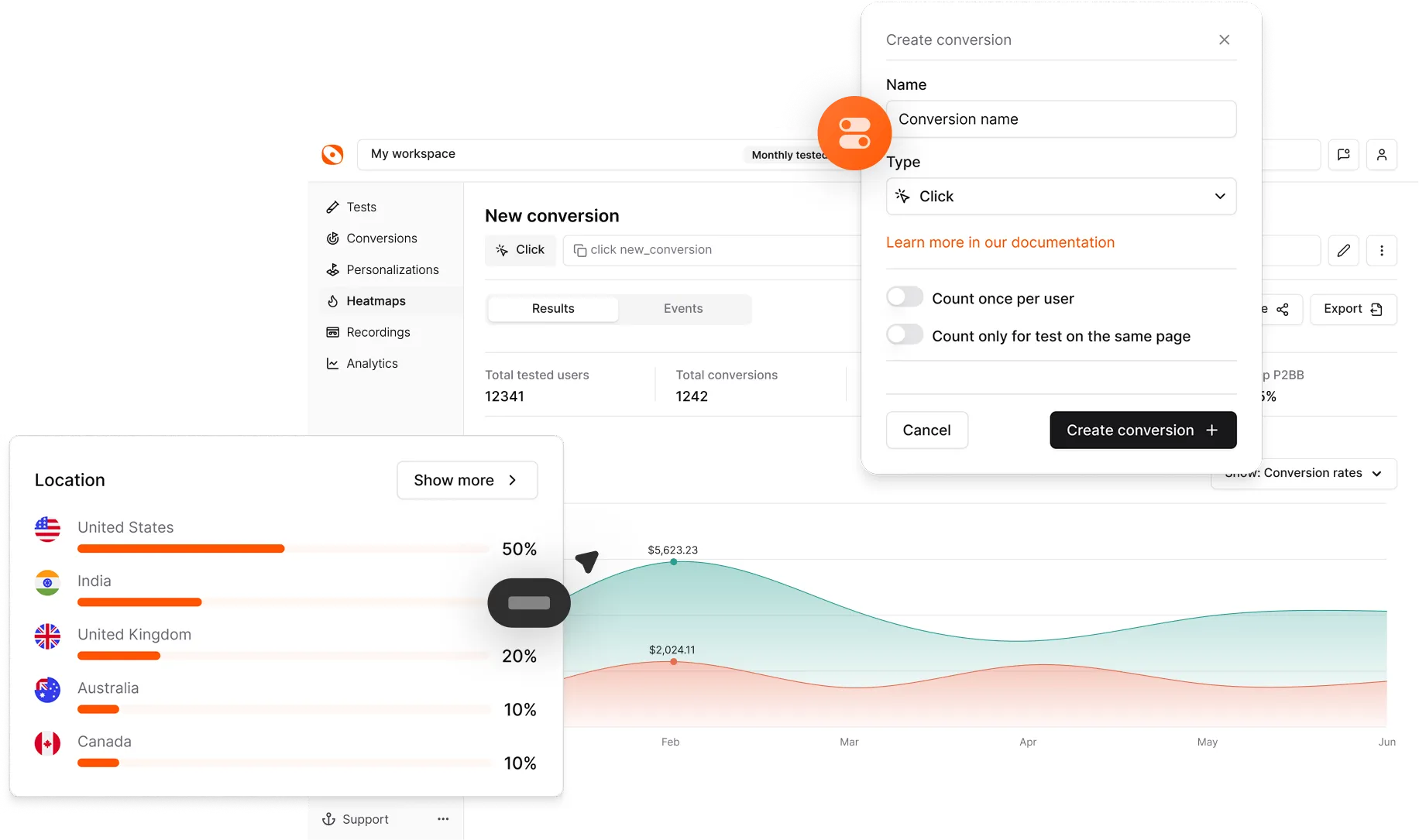
Use the Optibase app inside Webflow to connect your variant elements. Choose what counts as a win: a click, a form submit, a page visit, or a custom event.

Launch and read results

Turn the test on in Optibase. Results update in real time. When one version wins, ship it.
Built for growth

A/B testing in Webflow from start to finish

Install Optibase, create a variant in the Designer, set a conversion goal, and launch a live test — in under 10 minutes.
FAQ

Frequently asked questions

How do I install Optibase on my Webflow site?
Install Optibase from the Webflow App Marketplace. Click install and the app connects your site and adds the tracking script automatically. No project settings or code required.
Can I test CMS and dynamic pages in Webflow?
Yes. Optibase works with static pages, CMS template pages, and collection pages. You can test any page type in Webflow.
What can I actually test?
Anything you can build in Webflow: headlines, buttons, images, forms, sections, layouts, full pages. There are no limits on what elements you can test.
Does testing slow down my Webflow site?
No. Optibase uses a lightweight, flicker-free script that does not affect your page load speed or Core Web Vitals.
Do I need to know how to code?
No. You install from the App Marketplace, create variants in the Designer, and connect everything using the Optibase app — no code at any step.